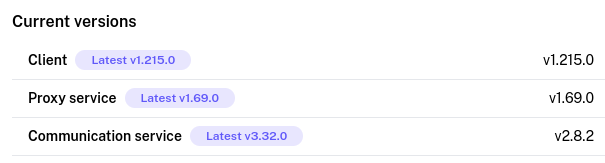
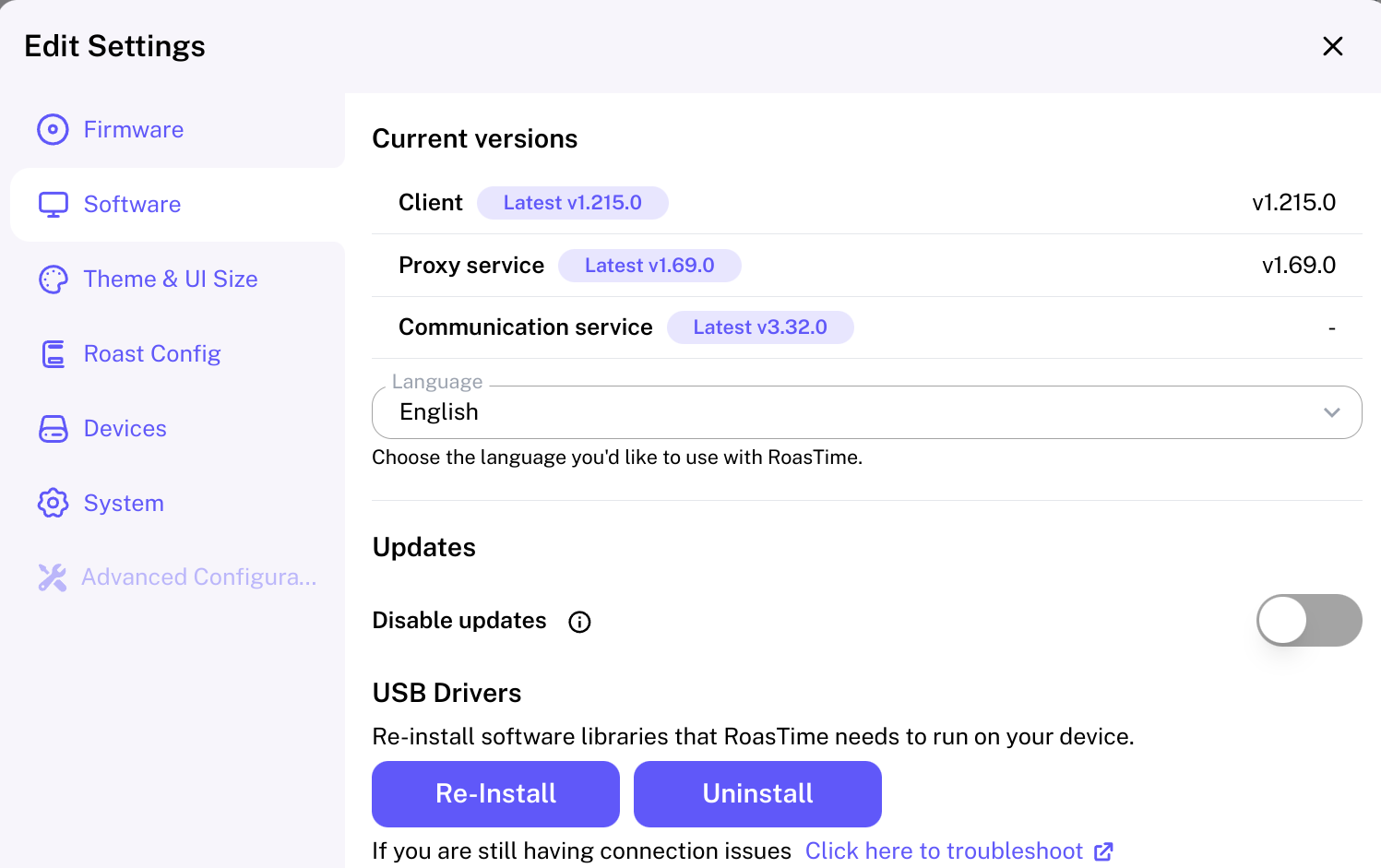
Linux AppImage connection issue and update loop

OS: Ubuntu 26.04
SW: AppImage Linux x64 v4.14.3
Machine: Ailio Bullet R1 v2, Firmware 605, Serial 6423

Updates till September 20, 2026:

  • Client v1.209.1
  • Communication service v3.27.2
  • Proxy service v1.68.0

Updates after September 20, 2026:

  • Communication service v3.28.1
  • Client v1.215.0
  • Communication service v3.32.0
  • Proxy service v1.69.0

Since the updates released after September 20, 2026, I’ve been having problems with never-ending update loops every time I start the software. And the connection to the Ailio Bullet R1 v2 no longer works.

For the last roasting day, I got around this by redownloading AppImage v4.14.3 and deleting the folders under ~/.config named “roastime,” “RoasTime,” and “roast-time,” which made the faulty updates disappear. Unfortunately, the USB connection was then unstable during roasting as you can see in my roasts from November 3, 2026.

With the updates up to September 20:

  • Client v1.209.1
  • Communication service v3.27.2
  • Proxy service v1.68.0

everything worked fine.

The tips from Troubleshooting Connection Issues | Aillio Docs does not help.

1 Like

I have updated the firmware of the Bullet to 617, but that made no difference regarding the connection issue and update loop.

Luckily I had the /.config folders for Roastime with the functional updates on a second PC and could switch them to my roast PC. I then upgraded the Bullet firmware, see above and disabled the automatic software updates.

So I can run the software with:

  • Client v1.209.1
  • Communication service v3.27.2
  • Proxy service v1.68.0

I’m having this same issue. I also tried deleting the appimage, and it’s dependencies but this didn’t seem to help. I ultimately roasted with my backup machine running and older version of the software. but would love to fix my primary computer.

I am having the exact same problem with the roaster showing up in lsusb but roastime show it as offline. I have also been through 10 different instances of shutting down the machine, shutting down the app, etc and each and every time it shows applying updates. I tried to put all the relevant info below.

lsusb | grep Ail
Bus 003 Device 008: ID 0483:a27e STMicroelectronics Aillio LTD- Bullet R1 ROASTER FS
cat /etc/udev/rules.d/99-aillio-roaster.rules 
# Aillio roaster udev rules
#
# Installed by https://public.roast.world/linux-udev-fix.sh
#
# 1. Keep ModemManager off the port.
#
# Aillio roasters enumerate as USB CDC ACM devices, which ModemManager treats as
# modem candidates by default: it opens the port and writes AT commands to it. A
# tty is not exclusive and every byte goes to exactly one reader, so its probing
# takes replies meant for RoasTime, and a port reset makes in-flight writes fail
# with EIO. The property is set on the USB device and on the tty, because
# ModemManager consults both.
#
# 2. Let the desktop user open the device.
#
# uaccess hands the device to whoever is logged in at the seat, via systemd-logind:
# no group membership, no logout. The group rule below it, if present, covers
# headless and non-systemd setups where uaccess does not apply.
#
# Verify:
#     udevadm info -q property -n /dev/ttyACM0 | grep ID_MM

SUBSYSTEM=="usb", ATTRS{idVendor}=="0483", ATTRS{idProduct}=="5741", ENV{ID_MM_DEVICE_IGNORE}="1"
SUBSYSTEM=="tty", ATTRS{idVendor}=="0483", ATTRS{idProduct}=="5741", ENV{ID_MM_DEVICE_IGNORE}="1"

SUBSYSTEM=="usb", ATTRS{idVendor}=="0483", ATTRS{idProduct}=="a27e", ENV{ID_MM_DEVICE_IGNORE}="1"
SUBSYSTEM=="tty", ATTRS{idVendor}=="0483", ATTRS{idProduct}=="a27e", ENV{ID_MM_DEVICE_IGNORE}="1"

SUBSYSTEM=="usb", ATTRS{idVendor}=="0483", ATTRS{idProduct}=="a27f", ENV{ID_MM_DEVICE_IGNORE}="1"
SUBSYSTEM=="tty", ATTRS{idVendor}=="0483", ATTRS{idProduct}=="a27f", ENV{ID_MM_DEVICE_IGNORE}="1"

SUBSYSTEM=="usb", ATTRS{idVendor}=="0483", ATTRS{idProduct}=="a4cd", ENV{ID_MM_DEVICE_IGNORE}="1"
SUBSYSTEM=="tty", ATTRS{idVendor}=="0483", ATTRS{idProduct}=="a4cd", ENV{ID_MM_DEVICE_IGNORE}="1"

# Grant the logged-in desktop user access to every Aillio device
SUBSYSTEM=="usb", ATTRS{idVendor}=="0483", TAG+="uaccess"
SUBSYSTEM=="tty", ATTRS{idVendor}=="0483", TAG+="uaccess"

# Fallback for sessions uaccess does not cover (headless, non-systemd).
# 0660 rather than 0666: the group is the grant, so there is no reason to
# open the roaster to every account on the machine.
SUBSYSTEM=="usb", ATTRS{idVendor}=="0483", MODE="0660", GROUP="uucp"
SUBSYSTEM=="tty", ATTRS{idVendor}=="0483", MODE="0660", GROUP="uucp"
groups
roastuser adm uucp dialout cdrom sudo dip video plugdev render lpadmin lxd sambashare libvirt ollama docker
lsb_release -a
No LSB modules are available.
Distributor ID:	Ubuntu
Description:	Ubuntu 24.04.5 LTS
Release:	24.04
Codename:	noble
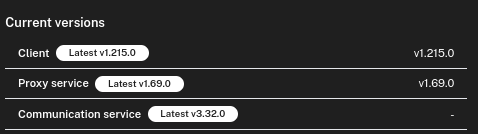
image

./Applications/RoasTime-4.6.16_66c662f18dc8953d7518294bc0c442bc.AppImage 
Warning: Ignoring XDG_SESSION_TYPE=wayland on Gnome. Use QT_QPA_PLATFORM=wayland to run on Wayland anyway.
electron-simple-updater: Found version 4.14.3 at https://releases.roast.world/roastime-main/v4.13.6/RoasTime-4.13.6.AppImage
electron-simple-updater: Downloading updates from https://releases.roast.world/roastime-main/v4.13.6/RoasTime-4.13.6.AppImage
electron-simple-updater: New version 4.14.3 has been downloaded
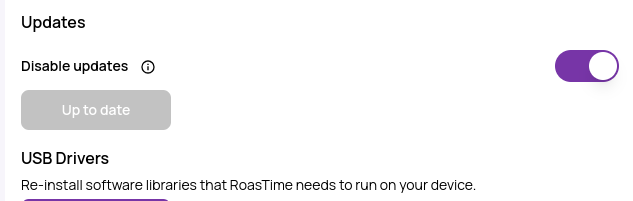
Actually I think I might have gotten a sort of workaround if you don’t have a second machine with an old version.

  1. Close RoasTime completely
  2. Run the following in a terminal. This will fully sign you out and delete all your cached preferences and recipes (which will get pulled down from the cloud when you login again)
    rm -rf ~/.config/roastime
    rm -rf ~/.config/RoasTime
    rm -rf ~/.config/roast-time
  3. Relaunch RoasTime, say Yes if it asks you to reinstall dependencies.
  4. Log back in. Roaster will show as connected.
  5. Wait for everything to resync. IF YOU CLOSE THE APP, YOU WILL NEED TO REPEAT THIS PROCESS

If you restart the app, it will break again!!! Even if you disable updates in the settings.
image

Seems there is some sort of breaking issue between versions that isn’t being properly handled. Note my version in the title bar still shows v.4.13.6 It also will prompt me that Updates are available despite it having already attempted to make an update.

Hopefully support is investigating this as it seems upgrade testing missed this issue

Update Nov 10th:

This users issue in another thread sounds like the same thing as well. So far, I haven’t found any comments from Aillio addressing the upgrade loop/connection issue post upgrade attempt specifically on Linux. My workaround is likely working because its effectively a downgrade.

2 Likes

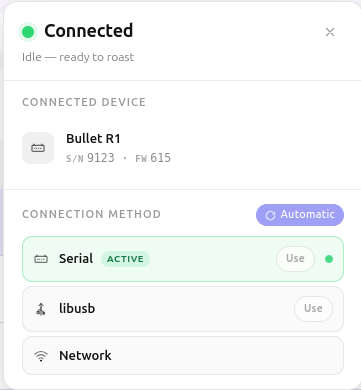
Looks like removing the libusb comms dependency will allow the application to fall back to serial. So this libusb version is bugged. I know for sure that libusb was being used previously. Also seems like there should be a fall back.

Disable updates in RoasTime With RoasTime fully exited run the following and then relaunch.

pkill -f roast && rm ~/.config/roastime/deps/roastime-comms-linux-x64

image
image

@jacob @mcaillio Are you able to provide any advice on why the comms binary seems to be breaking with the recent update. Willing to do whatever debugging necessary, ideally asynchronously as I am constantly on the move. See the above posts for my environment details.

Having the exact same issue over here, update loop and no connection on Ubuntu 22.04. No luck with the downgrade either, that got me stuck on serial which does not work due to other issues…

Happy to help with debug if Aillio folks have any ideas.

I have the same two issues on Arch Linux with RoasTime 4.14.3: an endless update loop with nothing showing up for the Communication service, and, with the older one re-installed, the roaster not being recognised, despite lsusb showing the device. The workarounds suggested above did not work.

I emailed Aillio support, twice, but they have been ignoring me.

@rafal It appears that your communications service doesn’t show a version. It might mean that the communication service is not installed. Have you tried following Troubleshooting Connection Issues | Aillio Docs

There are also some Arch specific steps here to ensure your udev rules are correct.

I don’t run Arch so I am not knowledgeable about the specifics.