I just tried with AutoHotkey, and this works brilliantly regardless how RoasTIme is started…
; Use WinSpy to get the RoasTime executable string
roastimeString := "ahk_exe RoasTime.exe"
if WinExist(roastimeString) {
  ; RoasTime is active, so we can focus it
  WinActivate(roastimeString)
}
You can then choose to send the hotkeys from AHK or, as I prefer it, to have Stream Deck send them upon focusing the application using the AHK script here.
p.s. There really is no need to check if RoasTime is running before trying to activate it, as AHK will just ignore it if it isn’t. But it is easier to adorn the script with extra features if you do. You will, however, want to make sure it is running - and in focus - before sending off keypresses, so as not to send random text into other applications, e.g., “PRESS (1) TO FORMAT YOUR HARDDRIVE:” and then have your “Mark Yellowing” send off that 1 it’s waiting for  .
.
p.p.s. A slightly more elegant solution would be to pass a parameter to the AHK script, to instruct it which keys to send to RoasTime and then leave it all to AHK, as per https://www.autohotkey.com/docs/v2/Scripts.htm#cmd. That way you can have some control logic to safeguard the keypresses.
p.p.p.s I am not allowed to add a thirds reply to myself. Bugger. Well…  …consider this below the line a reply, then:
Well, I couldn’t resist. Here is a self-contained AHK script…
; Use WinSpy to get the RoasTime executable string
roastimeString := "ahk_exe RoasTime.exe"
if WinExist(roastimeString) {
  ; RoasTime is active, so we can focus it - we will wait 1 second and then skip if not in focis
  WinActivate(roastimeString)
  if WinWaitActive(roastimeString,,1) {
    if A_Args.Length > 0 {
      ; If there are parameters passed to the script, iterate them
      for n, param in A_Args {
        ; Everything but "space" is passed as-is, e.g., ^^i (Ctrl-I) or ^^+{Tab} (Ctrl-Shift-Tab)
        if StrLower(A_Args[n]) = "space"
          Send(" ")
        else
          Send(A_Args[n])
      }
    }
  }
}
This replaces the hotkey-send in Stream Deck, so that now the script is being called with the parameter you want. For instance…
// Send a "1"
rt.ahk 1

// Send a Ctrl-i (to show roaster information)
rt.ahk ^^i

// Send a Ctrl-Shift-Tab (to cycle one tab backwards)
rt.ahk ^^+{tab}
In Stream Deck it looks like this…
"C:\Program Files\AutoHotkey\v2\AutoHotkey64.exe" "C:\Users\*user*\Documents\AutoHotkey\RoasTime.ahk" ^^i
…to have it focus RoasTime and send a Ctrl-i key sequence. The actual paths will vary on your system, depending on where you have AHK installed and where you put the script.
Don’t use “Open Application” to run the scripts, as this will not allow passing parameters. Instead, use “Open” which uses the Windows command interpreter instead of spawning the application directly (creatprocess vs. shellexecute).
The reason there are two ^^ when AHK only expects one, is that one escapes the other in the CMD path parser. That doesn’t need further polish, I don’t think.
[another pseudo reply - 28th Nov.  ]
]
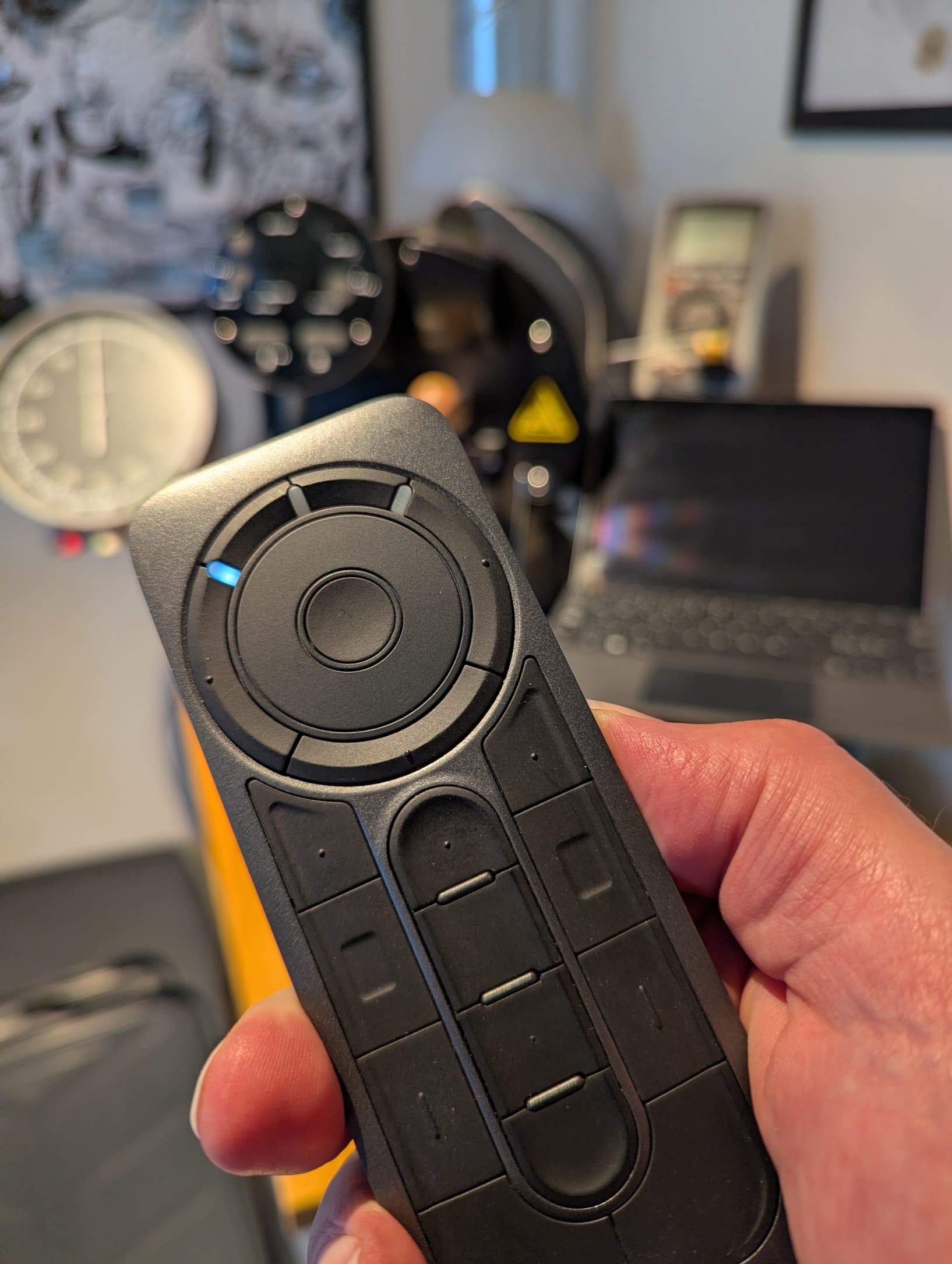
Just for the fun of it, I tried doing the same with a Wacom Expresskey Remote (EKR-100). The remote has the advantage over Stream Deck, that it is wireless. It does require a dongle, so the USB hub is still needed, but with this at least, you don’t need a powered hub.
It works like a charm, except it requires an annoying little piece of manual work.
Wacom Center can attach an application to a button on the remote, but it does not allow arguments. So, either you will have to have a shortcut or a script for each hotkey you want to send, or have a bit of a detour:
I assigned the AHK script to all the buttons I wanted to use for the roaster, without adding the parameters (“^^i” and “1” and all that). Wacom Center simply doesn’t have provisions for adding them.
Then, I backed up the settings in Wacom Center. They are saved in “%appdata%\WBackups” in plain XML. With a text editor I then added the missing arguments…
<ApplicationName type="string">"C:\Users\thn\Documents\AutoHotkey\wacomtest.ahk" ^^i</ApplicationName>
<ButtonApplicationRunName type="string">wacomtest.ahk</ButtonApplicationRunName>
Because of an idiosyncratic implementation detail, the path now needs to be quoted, but then you can add the needed parameter with no further ado.
Once edited, go back to Wacom Center and restore the backup. The buttons now work marvellously with the Bullet.
p.s. I’ve got a Logitech Harmony somewhere - perhaps I should try that too .
 . If anyone knows of ruggedised alternatives, please do chime in.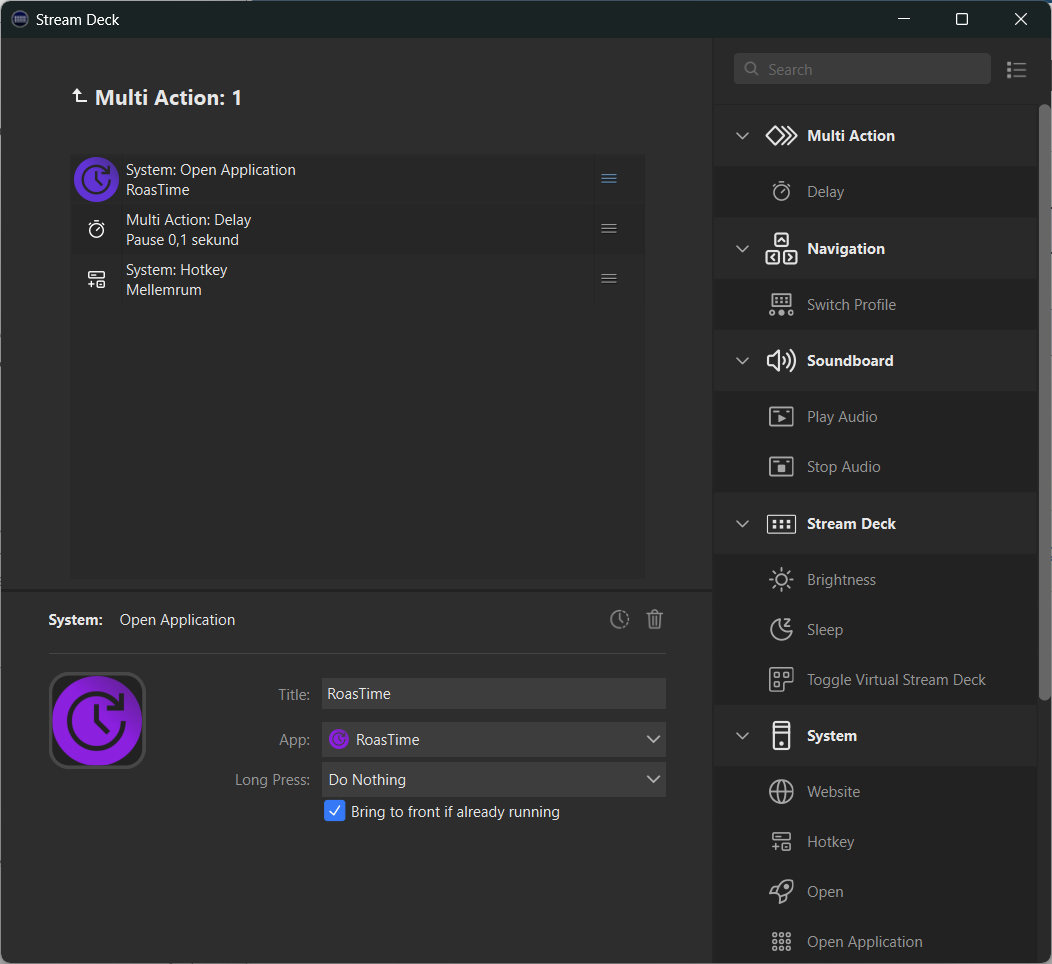

 .
.