Bullet R1 V2 stuck on Err9998 after firmware downgrade (RoasTime 6.17)

Hi everyone, I’m looking for help recovering my Bullet R1 V2.

I was running the latest firmware/RoasTime version, but I started experiencing IBTS crashes around ~185°C during roasts. In an attempt to fix this, I tried downgrading to RoasTime / firmware version 6.17.

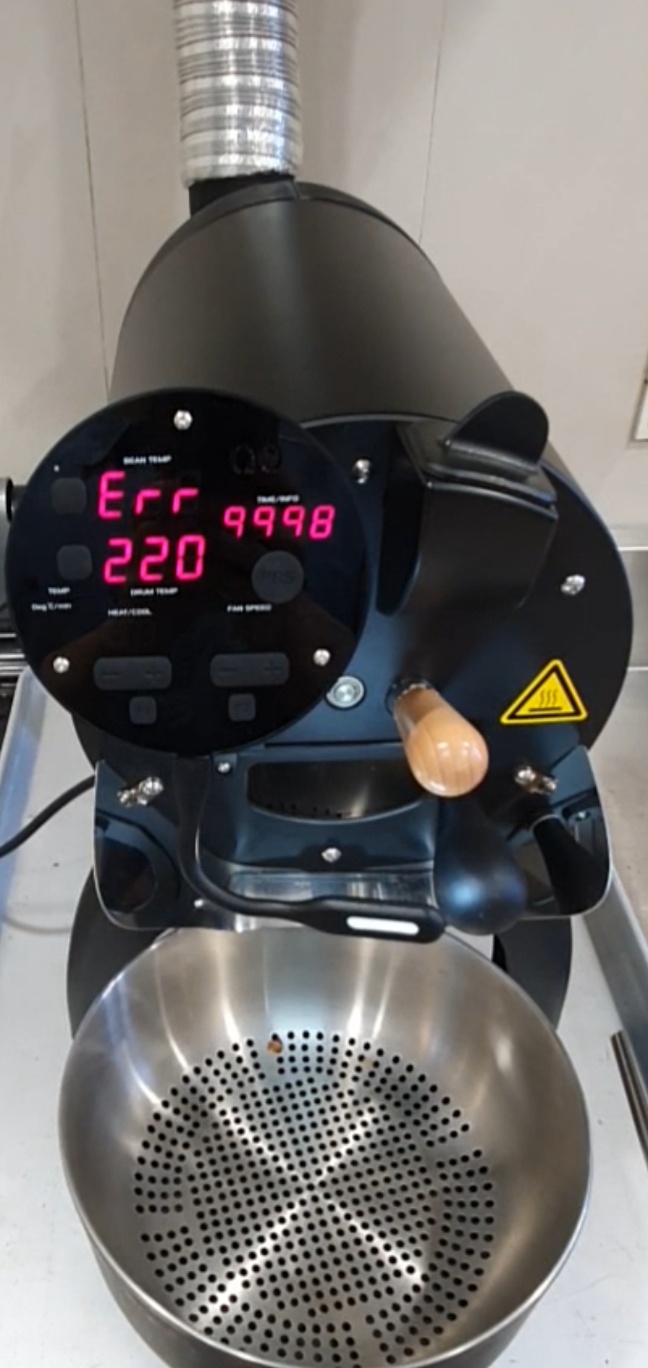
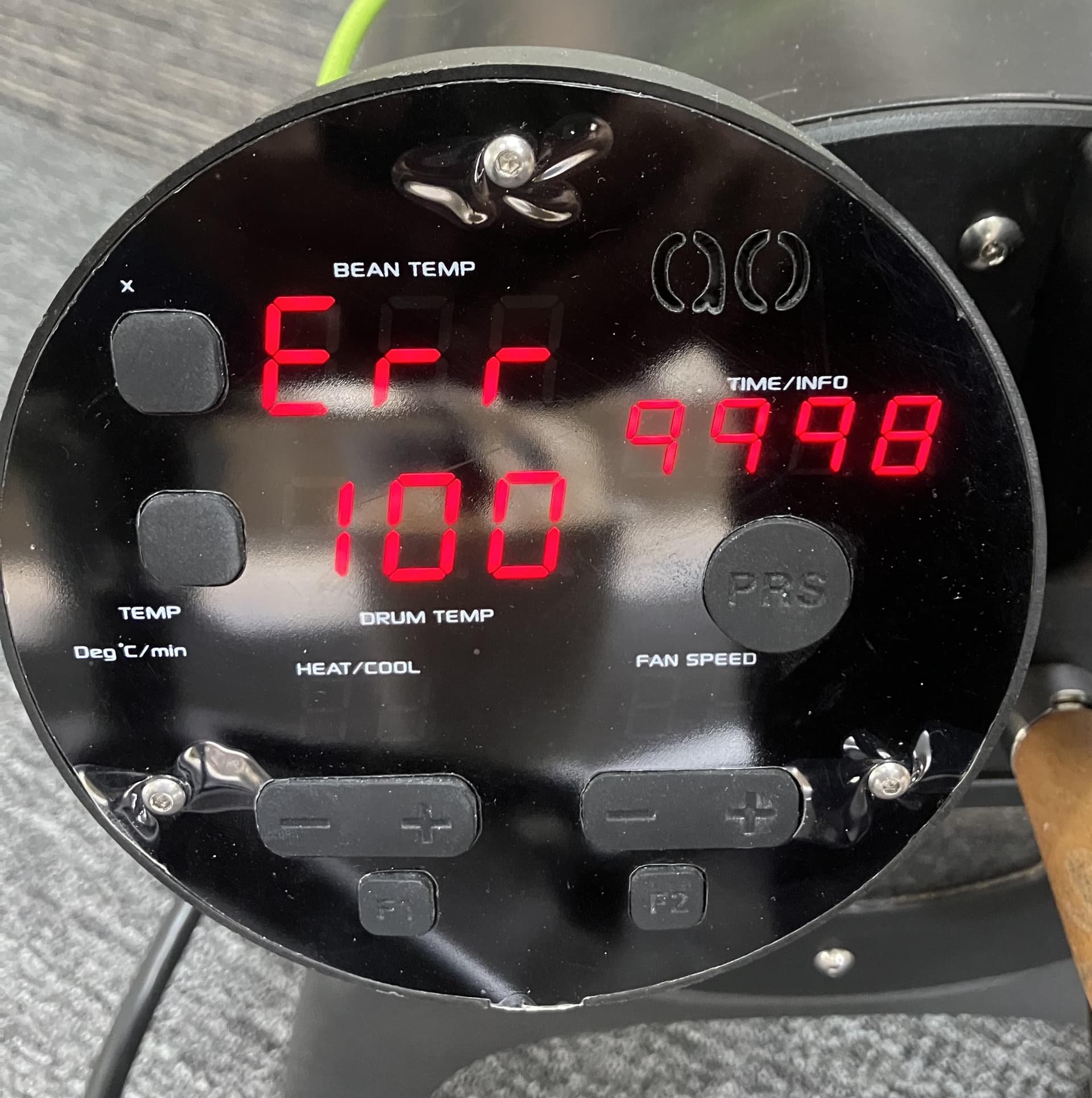
During the downgrade/update process, the control panel showed Err9998 and the process froze. RoasTime then showed the roaster as “not connected.”

Since then, every time I power on the Bullet:

The display shows Err9998

The fan runs

The machine becomes unresponsive/frozen

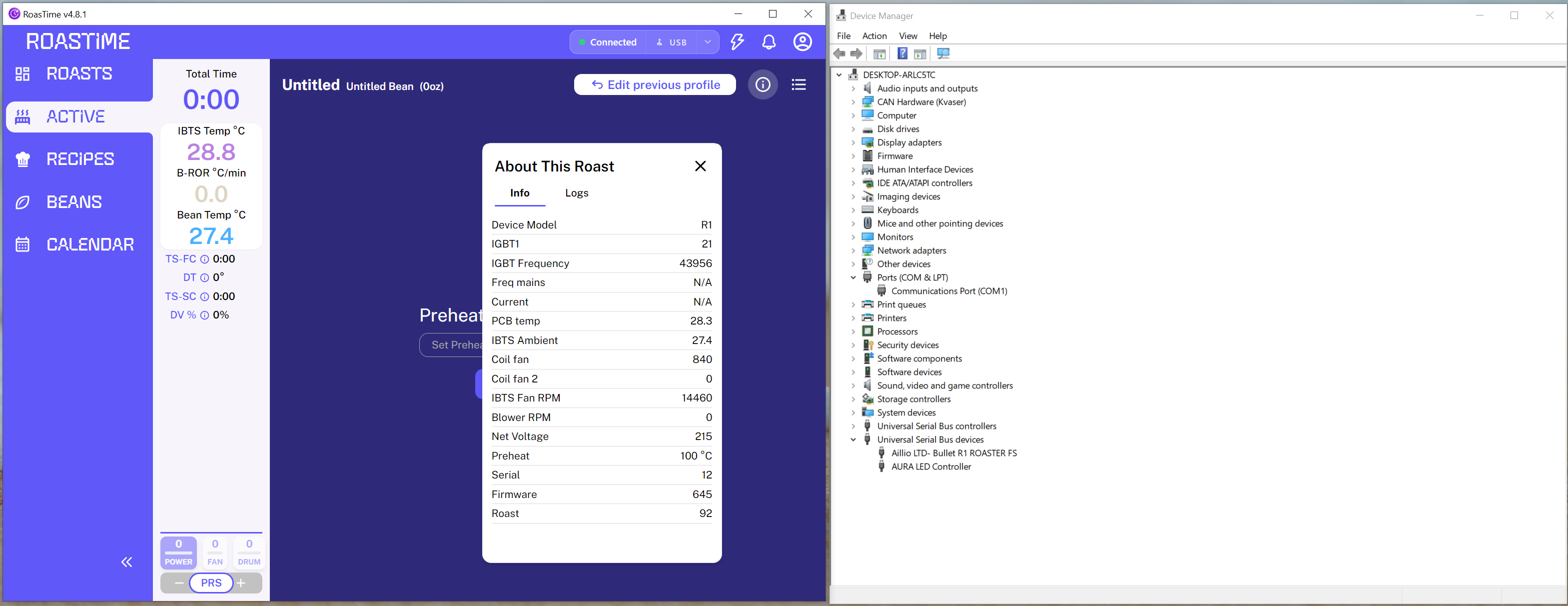
RoasTime cannot detect the roaster (shows “roaster not connected”)

It looks like the firmware update may have been interrupted and the machine is now stuck in this state.

Has anyone experienced this or know the recovery procedure (firmware recovery)?

Any help would be appreciated. Thank you.

Since your error isn’t in the manual, so only someone from Aillio would know, the only thing you could try before contacting support is the manual bootloader.

Aillio - Manual Bootloader | Videos & Movies on Vimeo

By the way, I don’t think the crashes are caused by the firmware. There must be some other explanation.

Hi, thank you for the reply.

I tried this method multiple times with the latest RoastTime and the old version but the roaster does not seem to connect.

I’m sorry, but I must ask, although I’m pretty sure you’ve done it already. We’re talking clean RoasTime installation, with all folders, drivers, etc. removed?
Hi @masatolee

Please follow the steps below to update the firmware and clear error code [9998].

You can use RoasTime or the R1 Web Updater tool to program the board.

Note: Please use only one tool at a time, as both tools use the same port. Please disconnect or close one before using the other.

  1. Close the RoasTime program.
  2. Open the R1 Web Updater:
    Bullet R1 Firmware Update
  3. Enter Bootloader mode:
  • Hold the Power Down button.
  • Turn on the Bullet machine while holding the button.
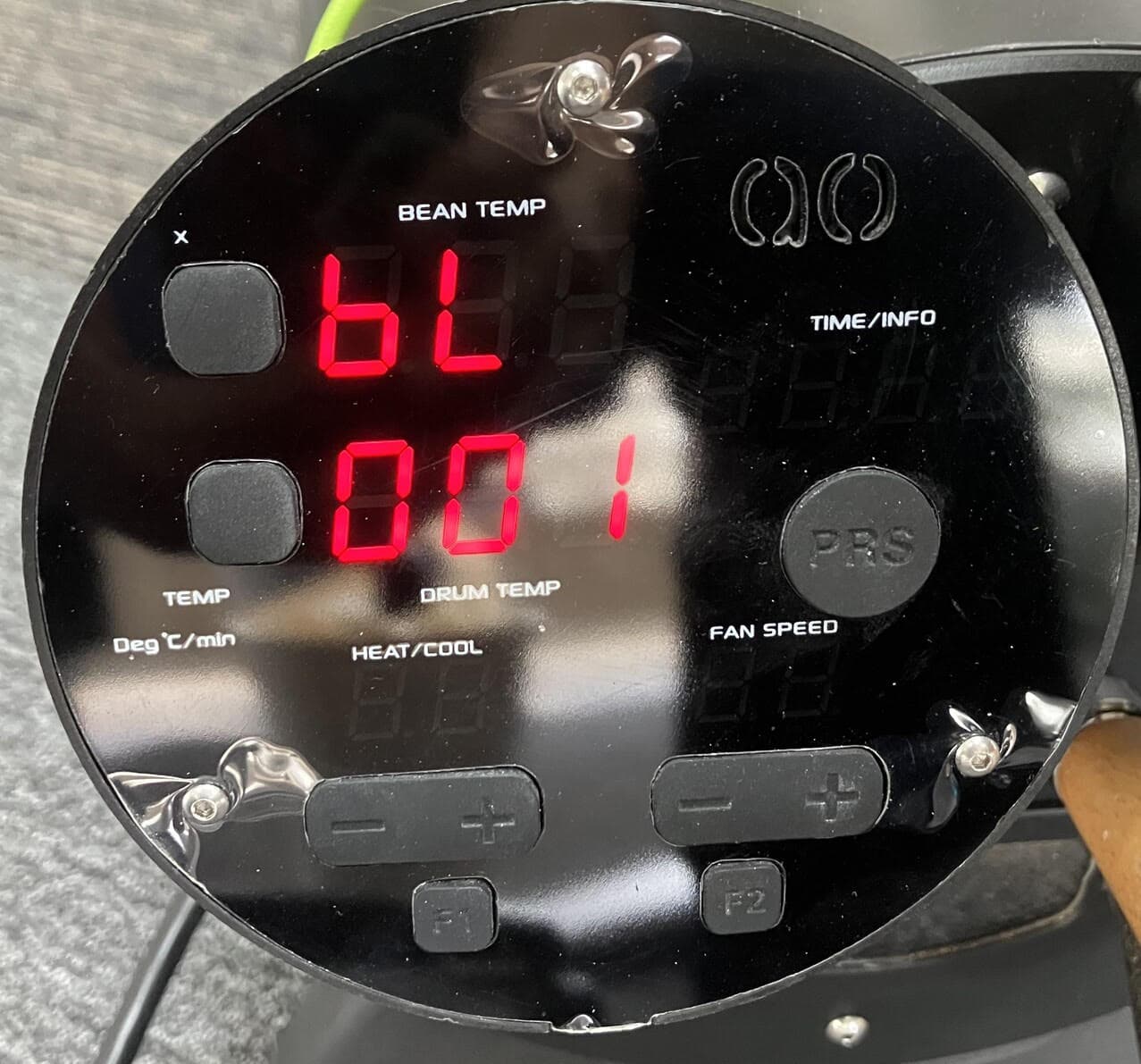
  • You should see BL00x information on the display.

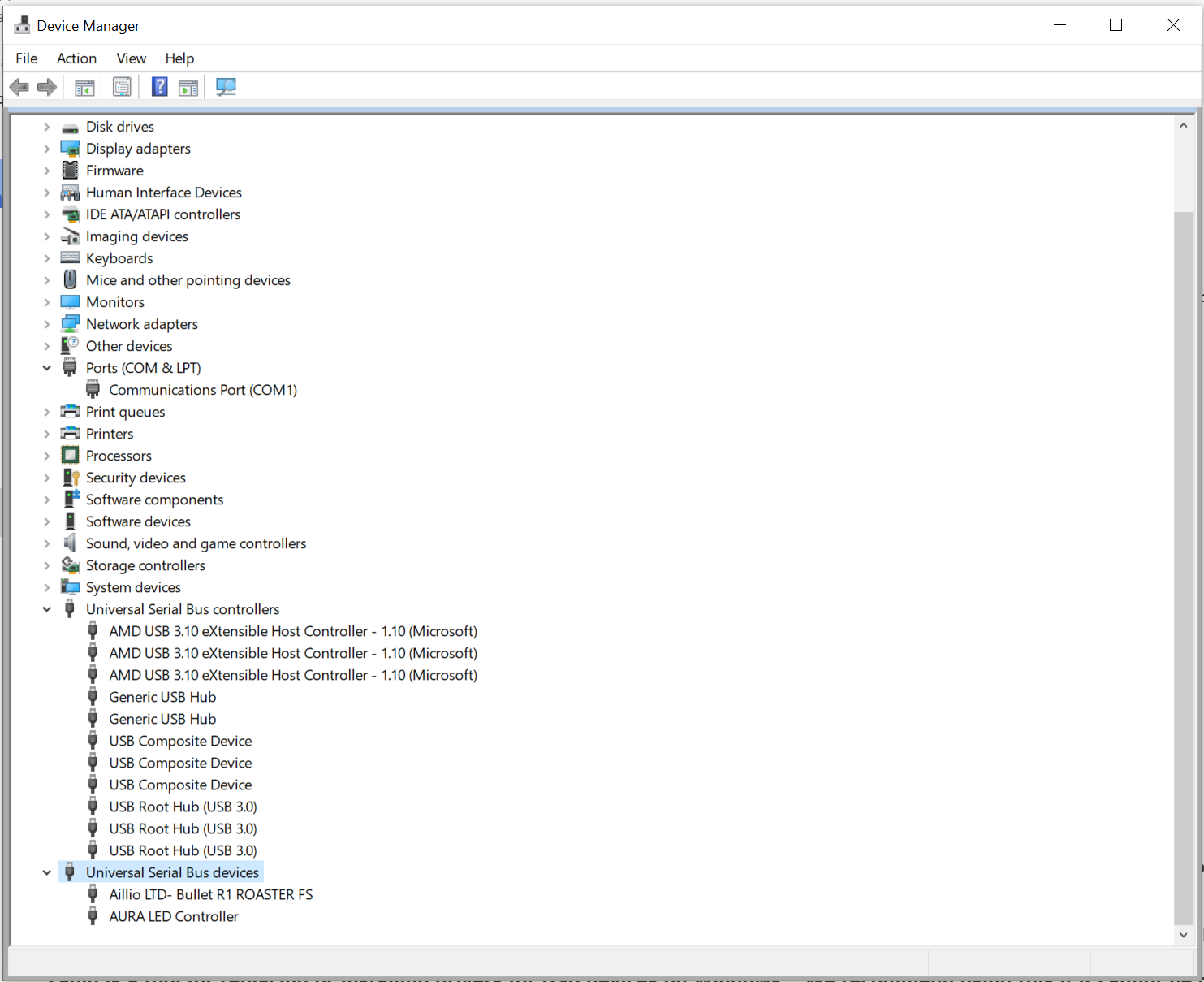
  1. Check Device Manager. It should show the Aillio Bullet device.

  2. On the R1 Web Updater page:

  • Click Check Releases
  • Click Load
  • Click Upload Firmware
  1. Wait until the upload is finished.
  2. Restart the Bullet by turning the power off and on again.
  3. Close the Web Updater.
  4. Check Device Manager again. You should see the Bullet device information.
  5. Open RoasTime and check the current firmware version again.

Bullet R1 Enter Bootloader Mode Firmware v641 or later
Bullet_R1_Bootloader_Mode_v641_or_Later_Modern_Guide.docx.pdf (396.4 KB)

If the issue still persists, please contact Aillio Support for further assistance.
[email protected]

Thank you!

2 Likes

URGENT

Hi

I had this problem last night in the middle of fulfilling a wholesale order.

I tried the fix and it didn’t work.

I wasn’t able to access the R1 Web Updater as it’s password protected…

I tried every other solution, none of which worked…

I need a solution or a password for the R1 Web Updater to fix this ASAP please.

Thanks
Astin